SpreadSheet Assistant for iPad1.0
Publisher Description
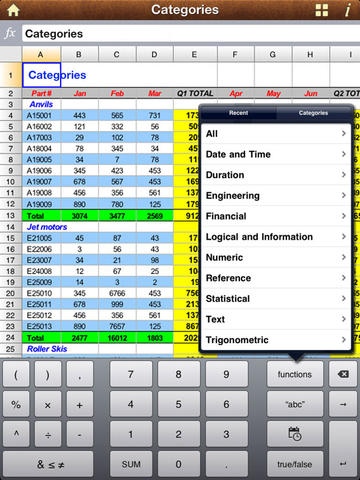
SpreadSheet Assistant is a spreadsheet app, which lets you create, edit and share Microsoft Excel files on the move even easier through a contextual interface, drag and drop editing and sharing to email. Which support XLS & XLSX format spreadsheets on your iPad. It is compatible with Excel, Numbers and any other XLS/XLSX-based Spreadsheet program.
GENERAL FEATURES
InTact Technology retains original document formatting of edited files
Freeze rows/columns
111 functions
Tap cells to compose formula.
Tap and drag to change row heights and column widths.
Insert, copy, paste or cut cell ranges, rows or columns.
Move or copy spreadsheets between folderslocally
Copy and paste within and between worksheets.
Date formats, date separators and numeric separators are all handled correctly according to the current locale, with manual override. Out of all the iPad spreadsheets, only Sheet HD does this correctly!
Open password protected Excel 97-2008 files
Extensive cell & number formatting
Insert/delete/resize/hide/unhide rows & columns
Rename/insert/delete sheets
Compatible with Excel, Numbers, NeoOffice.
Multiple worksheets
Multiple Undo/Redo
Find/Find Next
View, create, edit and save spreadsheets in XLS and XLSX format.
Handles multiple worksheets.
Handles unlimited rows and columns.
Searching and sorting of cells.
Cell formatting, including bold, italic, borders, text and cell color, alignment, text wrapping.
Cell types, including General, Number, Currency, Percentage, Date, Time, Date/Time and Text.
Merge cells feature.
Pane freezing.
Intelligent auto range selection for range based functions.
Create or delete folders.
Email spreadsheets as attachments.
Print spreadsheets wirelessly.
GENERAL FEATURES
View, create, edit and save spreadsheets in XLS/XLSX format.
Compatible with Excel, Numbers, NeoOffice.
Portrait and landscape views.
Handles multiple worksheets.
Handles unlimited rows and columns.
Searching and sorting of cells.
Cell formatting, including bold, italic, borders, text and cell color, alignment, text wrapping.
Cell types, including General, Number, Currency, Percentage, Date, Time, Date/Time and Text.
Merge cells feature.
Pane freezing.
Copy and paste within and between worksheets.
Tap and drag to change row heights and column widths.
Intelligent auto range selection for range based functions.
Tap cells to compose formula.
Insert, copy, paste or cut cell ranges, rows or columns.
Date formats, date separators and numeric separators are all handled correctly according to the current locale, with manual override. Out of all the iPhone spreadsheets, only Sheet does this correctly!
ORGANISING SPREADSHEETS
Create or delete folders.
Move or copy spreadsheets between folders
Email spreadsheets as attachments.
Print spreadsheets wirelessly (iOS4.2 and later).
Requires iOS 3.2 or later. Compatible with iPad.
About SpreadSheet Assistant for iPad
The company that develops SpreadSheet Assistant for iPad is Sun Man. The latest version released by its developer is 1.0.
To install SpreadSheet Assistant for iPad on your iOS device, just click the green Continue To App button above to start the installation process. The app is listed on our website since 2013-03-03 and was downloaded 6 times. We have already checked if the download link is safe, however for your own protection we recommend that you scan the downloaded app with your antivirus. Your antivirus may detect the SpreadSheet Assistant for iPad as malware if the download link is broken.
How to install SpreadSheet Assistant for iPad on your iOS device:
- Click on the Continue To App button on our website. This will redirect you to the App Store.
- Once the SpreadSheet Assistant for iPad is shown in the iTunes listing of your iOS device, you can start its download and installation. Tap on the GET button to the right of the app to start downloading it.
- If you are not logged-in the iOS appstore app, you'll be prompted for your your Apple ID and/or password.
- After SpreadSheet Assistant for iPad is downloaded, you'll see an INSTALL button to the right. Tap on it to start the actual installation of the iOS app.
- Once installation is finished you can tap on the OPEN button to start it. Its icon will also be added to your device home screen.
